WindowsTechnics.com is a participant in the Amazon Services LLC Associates Program. As an Amazon Associate, we earn from qualifying purchases made through links on this site, at no additional cost to you.

Convert Word File to PDF Without Software

convert-word-to-pdf-main

How to convert word file to PDF without any software?

It is not difficult to convert your word file to pdf without any software now! A few clicks and steps shown in this article will help you get the answer to “How to convert word file to pdf without software?”

If you are tired of finding a solution to this problem, I can assure you the best and the most effective way to convert your word file into pdf without the help of any software or any online converter.

Does It Works For All Microsoft Office Versions?

This Method Works for Microsoft Office 2007, 2010, 2013, 2016 or later versions. Except for Microsoft Office 2007 and earlier, a built-in converter comes with your office software.

This Method Works for Microsoft Office 2007, 2010, 2013, 2016 or later versions. Except for Microsoft Office 2007 and earlier, a built-in converter comes with your office software.

how-to-convert-word-file-to-pdf-2010

In Microsoft Office 2010, you can navigate the “File > Share > Create PDF/XPS Document” options to convert your word file directly to a PDF document. But, in other versions, the process is slightly different.

Converting Through Saving

Now, I am going to share with you a proven method that 100% correctly works for any version of Microsoft Office. This is an advanced method, and you have to understand the steps carefully. It will solve the question of “How to convert word file to pdf”.

Step 1: Understanding the File Format

Understanding the file format is important for you. I think you must be known about the following table- 
File NameFormats
Bitmap Imagebmp
MPEG 4 Videomp4
Worddoc, docx
Excelxls, xlsx
XML Filesxml
Data Filedat
Mp3 Audio Filemp3
PowerPointppt, pptx
Adobe Portable Documentpdf
Image Filejpeg, png, webp
Windows Installation Fileexe

Step 2: Saving the File in Desired Format

convert word file to pdf

As we knew earlier, except for Microsoft office 2007 and earlier, there is a “word to pdf soft” built-in in our office software; You can easily convert your word file with the help of this built-in function easily.

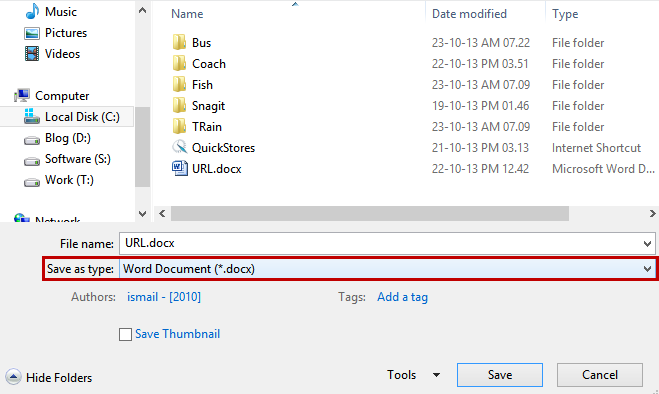
To do that, you have to “Save” your “Word Document” to the “PDF” file from the “Save as type” dropdown menu like the image below-

After saving your file, you will get your desired file in “.pdf” format. Please go to the file location of the saving document and find your file.

Step 3: Reviewing the Converting Process

You don’t have to convert a Word document to a PDF. All you have to do is save the file to .pdf format. That will automatically convert your Word document to PDF format.

Please follow the process below to save your desired file in “.PDF” format. This process will help you to get the answer to “How to convert word file to pdf.”

convert word file to pdf-2

The Processes Are:

  1. Open your Word document.
  2. Click on “File” in the top left corner of your document.
  3. Now click on “Save As.”
  4. A new window will appear like the previous picture.
  5. Select the path where you want to save your “PDF” file.
  6. Give the name of your new PDF file under the “File Name” option.
  7. Select “PDF (*pdf)” Option.
  8. Now click the “Save” button.
Enjoy the New PDF File.
Look for your PDF file in your saving path. Open it, and you can see your new pdf file ready to use.

Step 4: Not Finding the "PDF" Option in the Dropdown?

If you are having trouble finding the “Save as PDF” option from the dropdown menu of Save as type, you can follow the steps below.

Office 2007 and earlier versions don’t have the “Save as PDF” option. So, if you have Microsoft Office 2007 and earlier versions, you need an “Addons” installed on your PC to get the “Save as PDF” option.

Microsoft discontinued the download of the addons directly from their websites. You have to rely on third-party software sites. You can download it from the links below.

After downloading the file, please install it on your PC. Now, you will find the “Save as PDF” option from the “save as type” dropdown of your Word File.

Hope you get the answer to “How to convert word file to pdf” without any software.

Converting Through Google Drive

Another free method is using “Google Drive and Docs.” To convert your file through Google Docs, please follow the steps below-

First of all, Open “Google Drive” by entering the address – https://drive.google.com/drive/ and wait for your drive page to load. (You must heve to sign in to open the “Google Drive page.”)

Click on “My Drive > File Upload” option to upload the file you want to make pdf.

Now go to the file path and select the file carefully. Here we used “ALL_FAQ” file as an example. We have selected the file to upload on our drive and it is now showing under “Suggested” tab.

Once you have double-clicked on the file you have just uploaded, it should open by the “Google Docs.”

convert word file to pdf-google-drive-my-drive
convert word file to pdf-google-drive-file-open

Now go for the third and the final step to convert word file to pdf. If you are having problems opening the file in google docs, please change your browser then sign in your google account and then try to open the file using google docs.

The third step is as easy as offline word file saving process. Please follow the steps below-

  • Click on the “File” menu.
  • Click on “Download” button.
  • Now click on the “PDF Document (.pdf)” option. 

You file will be downloades soon. Please go to the download location and find your desired pdf file.

convert-word-file-to-pdf-download-as-pdf

Converting Through Online

If you do not want to take pressure of previous converting methods, you may use the third and the easiest way of Convert Word to pdf.

Adobe” the world leading pdf software provider, has a free online word to pdf conversion option. To do it, you have to just go to their addrss – Convert Word to PDF > Select your file and > Click on Download.

Frequently Asked Questions

How do I convert from Word to PDF?

Navigate to File > Save As > Select File Type (.PDF) > Click on “Save”.

How do I enable Save as PDF?
  1. Select the File tab.
  2. Select Save As.
  3. In the File Name box, enter a name for the file if you haven’t already.
  4. In the Save as type list, select (PDF)
  5. Select Save.
What is “Microsoft Print to PDF”?

Microsoft Print to PDF is a document-saving option for PDF format. It is the same as printing using a printer. The printer prints a hard copy of a document, and the “Print to PDF” option prints a soft copy to your Hard Drive as a PDF file format.

  1. Select the File tab.
  2. Select Print (Ctrl+P).
  3. In the “Output Option” from printer selection, please select “Print to PDF.”
  4. Select the saving path and file name.
  5. Select Save.

Related Articles

Cybersecurity Awareness in 2025
Updated on: 11Updated on: Jul

Cybersecurity Awareness in 2025

  Protecting your data starts with awareness. Cybersecurity Awareness in 2025: A Guide for Illinois, New York, Texas, Kentucky & Virginia As our lives move deeper into the digital world, cybersecurity has never been more important. From personal data to…

How To Refresh A PC By 1 Click Using Refresh.bat Easily
Updated on: 17Updated on: Jul

How To Refresh A PC By 1 Click Using Refresh.bat Easily

Let's do something funny and worthy. Refresh your entire hard drive with just one click. Make your computer faster than you ever imagine. In this article, you will get the answer: "How to refresh on computer? Or How to refresh…

How to Remove Properties and Personal Information From Useful Files Now? Quick smartest way
Updated on: 27Updated on: May

How to Remove Properties and Personal Information From Useful Files Now? Quick smartest way

This article will help you to “Remove Properties and Personal Information” from your files, and it works for almost all Windows Versions. You will be able to remove properties and personal information from Music files, Images Files, Document Files, or any…

1 thought on “Convert Word File to PDF Without Software”

Comments are closed.